Job Alerts Geolocation Setup
Requirements
Location-aware Job Alerts are included in WP Job Manager Geolocation Pro. They require the separately installed WP Job Manager Job Alerts extension version 3.0 or newer.
Pro provides the geolocation integration; it does not include the Job Alerts extension itself. Configure the Browser and Server API keys before enabling the integration, and confirm that Job listings already have indexed locations.
Open the Job Alerts settings
Go to Job Listings → Settings → Job Alerts. WP Job Manager Geolocation Pro adds its location controls to the existing Job Alerts settings section.
If the geolocation controls are missing, confirm that:
- The installed WP Job Manager Geolocation package is Pro.
- WP Job Manager Job Alerts is active.
- The site meets the supported extension versions.
Geolocation options
Enable Geolocation Filtering
Enable location and distance filtering for Job Alerts. This option is disabled by default.
Address Autocomplete
Enable Google Places suggestions in the alert Location field. This option is disabled by default and requires a working Browser API Key with Places API (New).
Search Radius
Choose how distance limits are applied:
- Leave the field empty to match by location without a radius limit.
- Enter a positive number to apply the same radius to every location-aware alert.
- Enter
userto let each user choose a radius while creating or editing an alert.
Distance Units
Choose Miles, Kilometers, or User Selectable (Miles & Kilometers). The default is Miles.
Alert form behavior
When geolocation filtering is enabled, the standard Job Alerts Location field is saved with coordinates for location-aware matching.
- When Search Radius is
user, the form displays a Distance field. - When Distance Units is user-selectable, the form displays a Miles/Kilometers selector.
- When Address Autocomplete is enabled, the existing Location field displays Google Places suggestions.
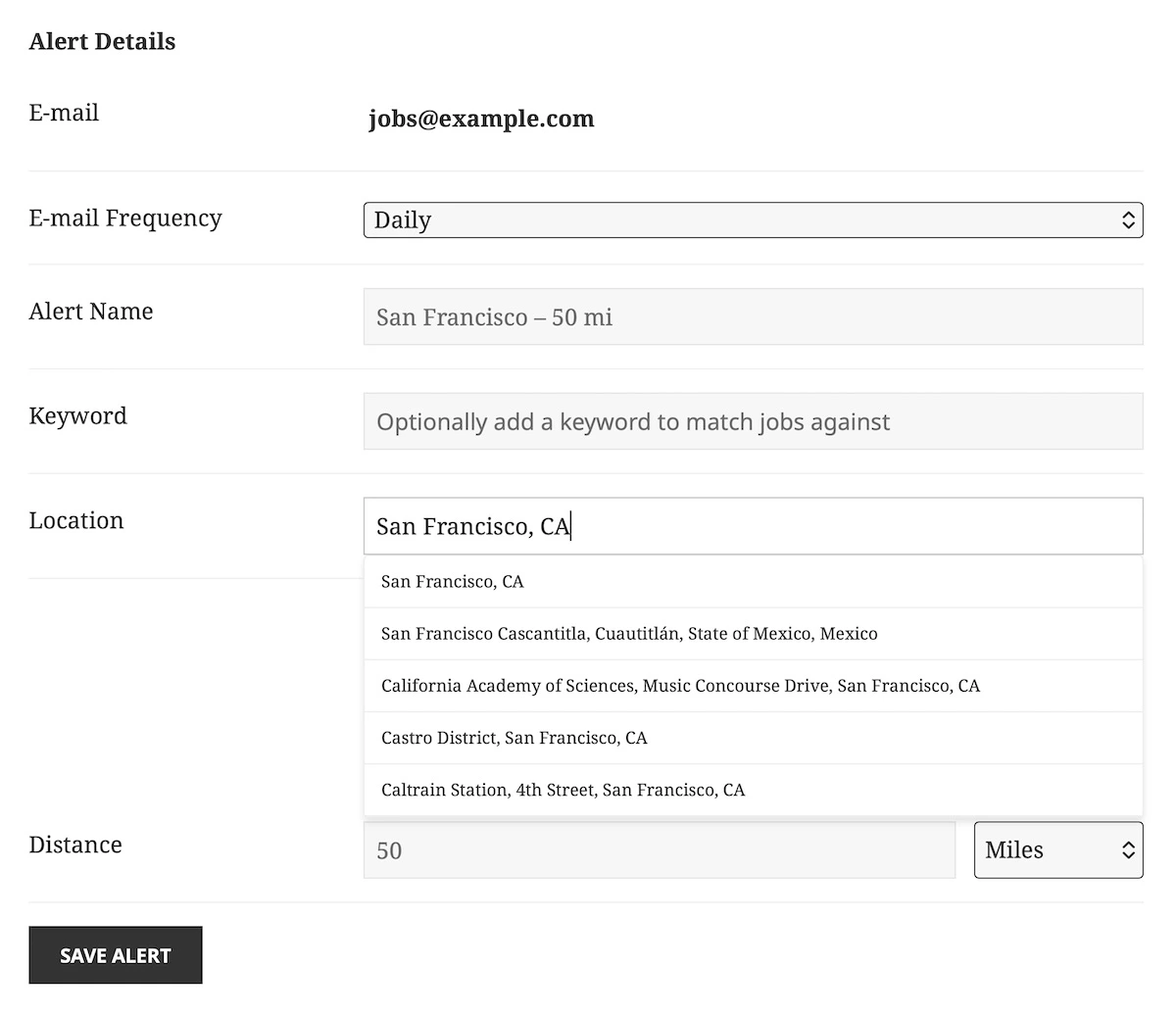
The Server API Key geocodes a changed alert location when the alert is saved. If geocoding fails, the plugin clears the saved alert coordinates rather than using stale coordinates.
Alert email tags
When geolocation filtering is enabled, the Job Alerts email template also supports:
{alert_location}— the location used for matching the alert.{alert_distance}— the configured alert radius followed bymiorkm.
Add these tags under Job Listings → Settings → Job Alerts → Alert Email Content when the email should show location context.
Test location-based alerts
- Confirm that the Job Alerts page contains the
[job_alerts]shortcode and is selected in the Job Alerts settings. - Create a test alert with a new, uncached location.
- If enabled, select an autocomplete suggestion and choose the radius and units.
- Edit the saved alert and confirm that its location, distance, and units are restored.
- Publish or use a known Job inside and outside the selected radius.
- Run the normal Job Alerts delivery workflow and confirm that only the expected Jobs are included.
- Check the alert email when using
{alert_location}or{alert_distance}.
Troubleshooting
The location controls do not appear
Confirm that Pro and Job Alerts are active, then enable Enable Geolocation Filtering. Clear page, object, host, and CDN caches. On a block-theme site, verify the actual front-end alert form after clearing cached assets.
Autocomplete does not return suggestions
Enable Maps JavaScript API, Places API (New), and Geocoding API for the Browser API Key and confirm that the current hostname is allowed by its website restrictions. See Generating Google Maps API Keys.
The alert saves without usable coordinates
Test the Server API Key from Job Listings → Settings → Geolocation → General. Confirm that Geocoding API, billing, and the server IP restriction are correct, then edit and save the alert location again.
An expected Job is not matched
Confirm that the Job has an indexed location, review the alert radius and units, and run Scan for Missing Job Locations from Job Listings → Settings → Geolocation → Tools when needed.