Generating Google Maps API Keys
Before you begin
WP Job Manager Geolocation uses two separate Google Maps Platform keys:
- Browser API Key: used in visitors’ browsers for maps, Places autocomplete, and browser-side geocoding.
- Server API Key: used privately by WordPress for server-side geocoding, including saved locations, free-text location searches, and explicitly requested repair geocoding.
Keeping the keys separate allows each one to use the correct security restriction. Do not publish the Server API Key in page markup or reuse a browser-restricted key for server requests.
You need a Google Cloud project with billing enabled. Google Maps Platform is usage-based, so review current pricing and configure budgets or quota alerts appropriate for your site.
Required Google services
In the Google Cloud Console, select the project that will own the keys and enable:
- Maps JavaScript API — displays maps and markers.
- Places API (New) — provides address autocomplete.
- Geocoding API — converts between addresses and coordinates.
Routes API is not required by WP Job Manager Geolocation’s proximity search. Places API (Legacy) is not a replacement for enabling Places API (New) for version 3.0.
Create the Browser API Key
- Open Google Maps Platform → Credentials.
- Select Create credentials → API key.
- Edit the new key and give it a recognizable name such as WP Job Manager Geolocation — Browser.
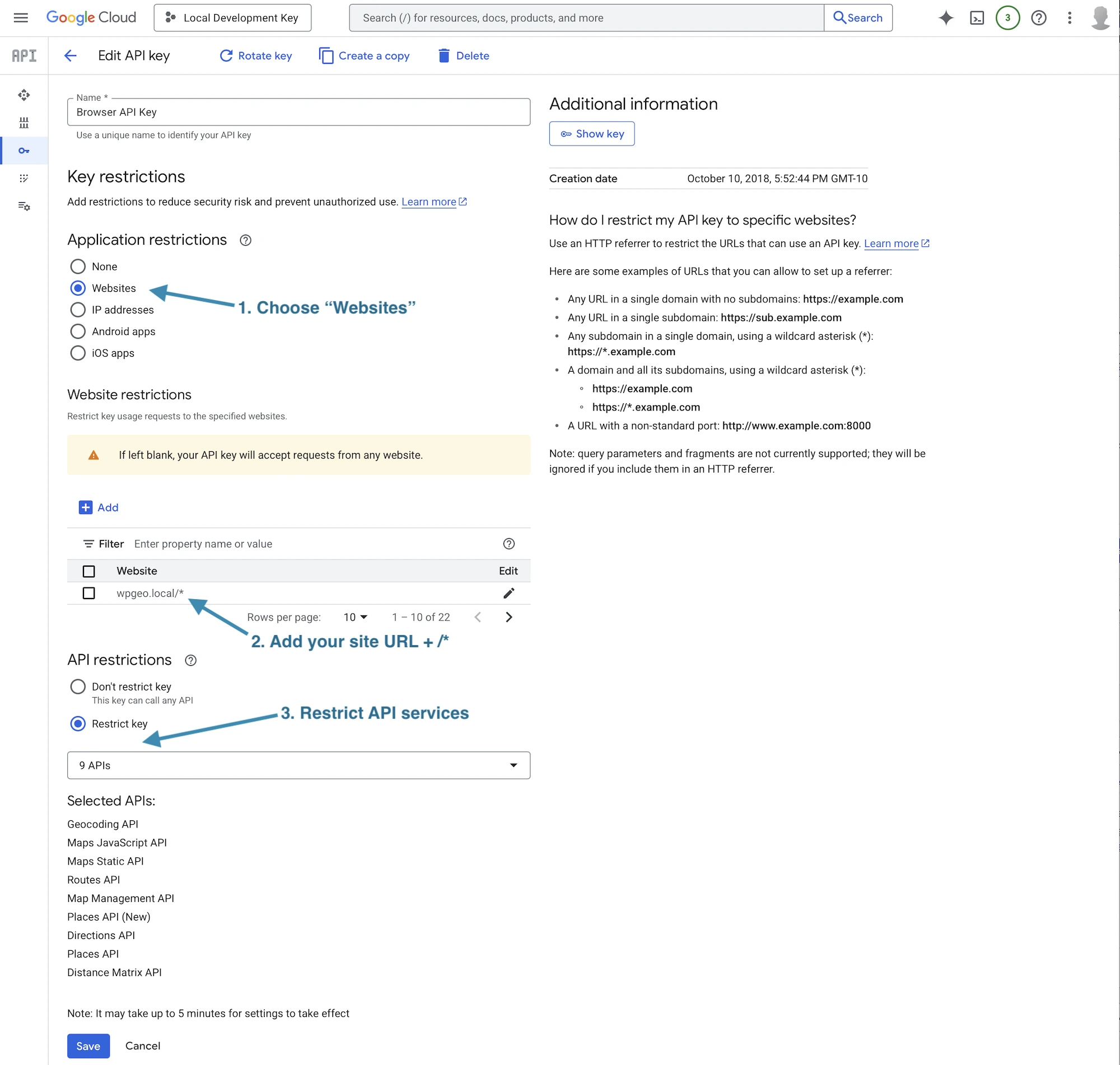
- Under Application restrictions, select Websites.
- Add every production and staging origin that will display a map or autocomplete field.
Examples:
https://example.com/*
https://*.example.com/*
https://staging.example.com/*
Include the protocol, hostname, and port when a nonstandard port is used. Do not add a broad wildcard for domains you do not control.
- Under API restrictions, select Restrict key.
- Allow Maps JavaScript API, Places API (New), and Geocoding API.
- Save the key.
Create the Server API Key
- Create a second API key and name it something like WP Job Manager — Server Geocoding.
- Under Application restrictions, select IP addresses.
- Add the public outbound IP address used by your WordPress server.
- Under API restrictions, restrict the key to Geocoding API.
- Save the key.
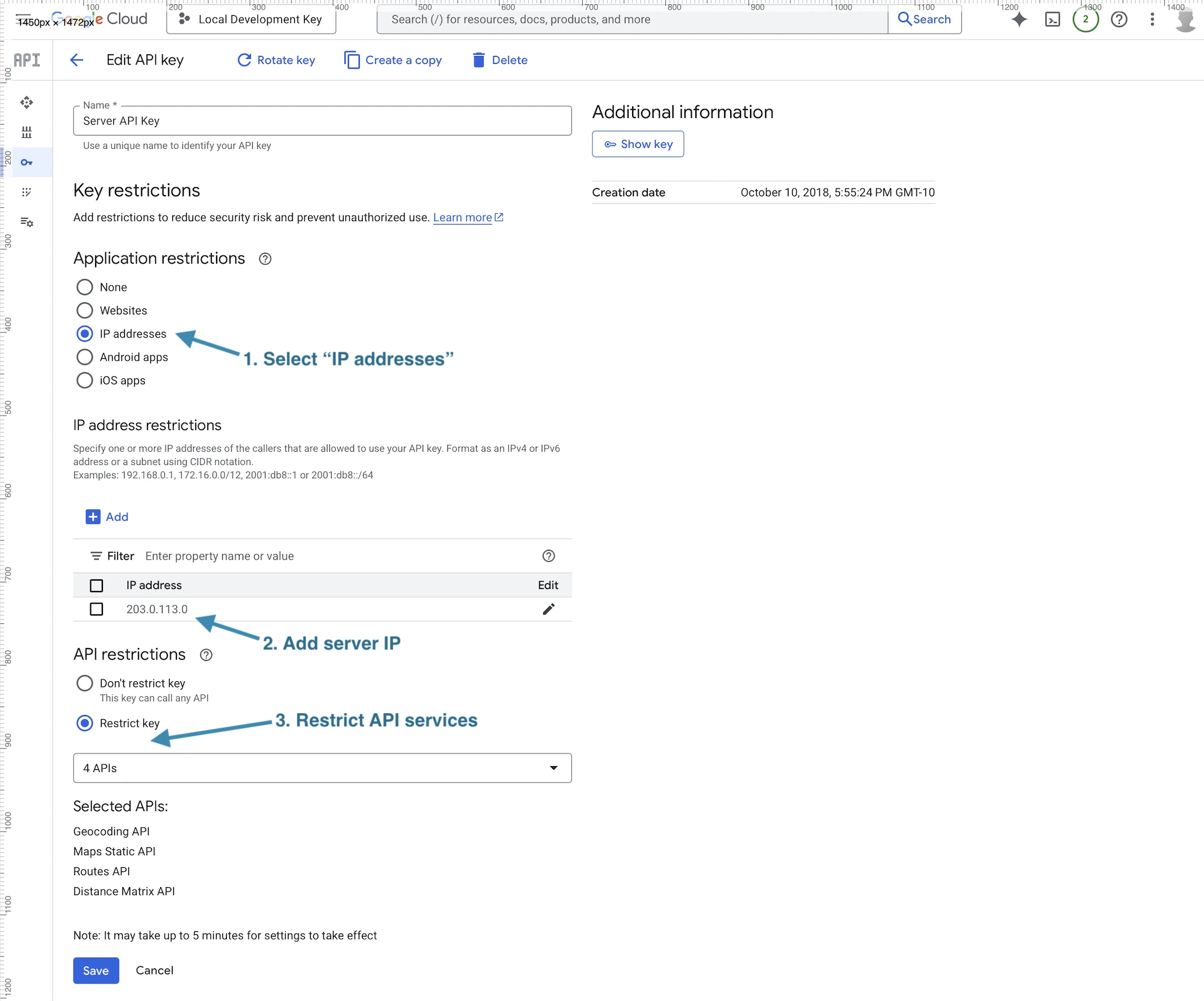
The allowed IP must be the source address Google observes. On hosts that use proxies, network address translation, or changing outbound addresses, that may differ from the address shown in the hosting dashboard. If the plugin’s server-key test returns an IP-related error, allow the IP displayed by Google or ask the hosting provider for the site’s outbound IP.
Add the keys to WordPress
Browser API Key
Go to Job Listings → Settings → Geolocation → General, paste the Browser API Key into Browser API Key (Required), and save the settings.
Server API Key
Go to Job Listings → Settings → General, enter the Server API Key in WP Job Manager’s Google Maps API key setting, and save.
Return to Job Listings → Settings → Geolocation → General. The server key is displayed there as a read-only value so you can confirm which key is being tested.
Test the configuration
Server key
Click Test API Key on the Geolocation General tab. The plugin sends a server-side request to the Geocoding API. A successful notice confirms that the key, Geocoding API, billing, and server restriction are working for that request.
Browser key
The server test does not validate the Browser API Key. Test it on the public site:
- Open a page containing a geolocation-enabled
[jobs]shortcode. - Confirm that the Results Map loads.
- Type a new, uncached address and confirm that autocomplete suggestions appear.
- Select a suggestion and confirm that a proximity search updates the results.
- If you enabled the locator, test it after granting browser location permission.
Troubleshooting
The map is blank or displays a Google error
- Confirm that billing is enabled on the same project that owns the key.
- Confirm that Maps JavaScript API is enabled and included in the key’s API restrictions.
- Confirm that the current production or staging hostname matches an allowed website referrer.
- Open the browser developer console and review the exact Google Maps error code.
Autocomplete returns 403 or REQUEST_DENIED
- Enable Places API (New) in the project.
- Add Places API (New) to the Browser API Key’s API restrictions.
- Confirm that the current hostname is allowed under the website restrictions.
- Test with a new address rather than a suggestion retained by the browser.
The Server API Key test fails
- Confirm that Geocoding API is enabled and allowed on the Server API Key.
- Confirm that the key uses IP-address restrictions, not website-referrer restrictions.
- Allow the source IP identified in Google’s response.
- Check quotas, billing, firewalls, and whether outbound HTTPS requests are allowed.
Google Cloud changes can take several minutes to propagate. Save the restriction, wait briefly, clear relevant caches, and test again before replacing the key.