Mashup Map Shortcode
Introduction
The Mashup Map shortcode displays multiple geocoded job listings or resumes as markers on one map. It runs its own listing query, so it is useful for a standalone map that is not tied to a WP Job Manager results list.
The map can limit how many locations are loaded, filter locations by state or country, hide filled jobs, cluster nearby markers, and use a custom marker icon.
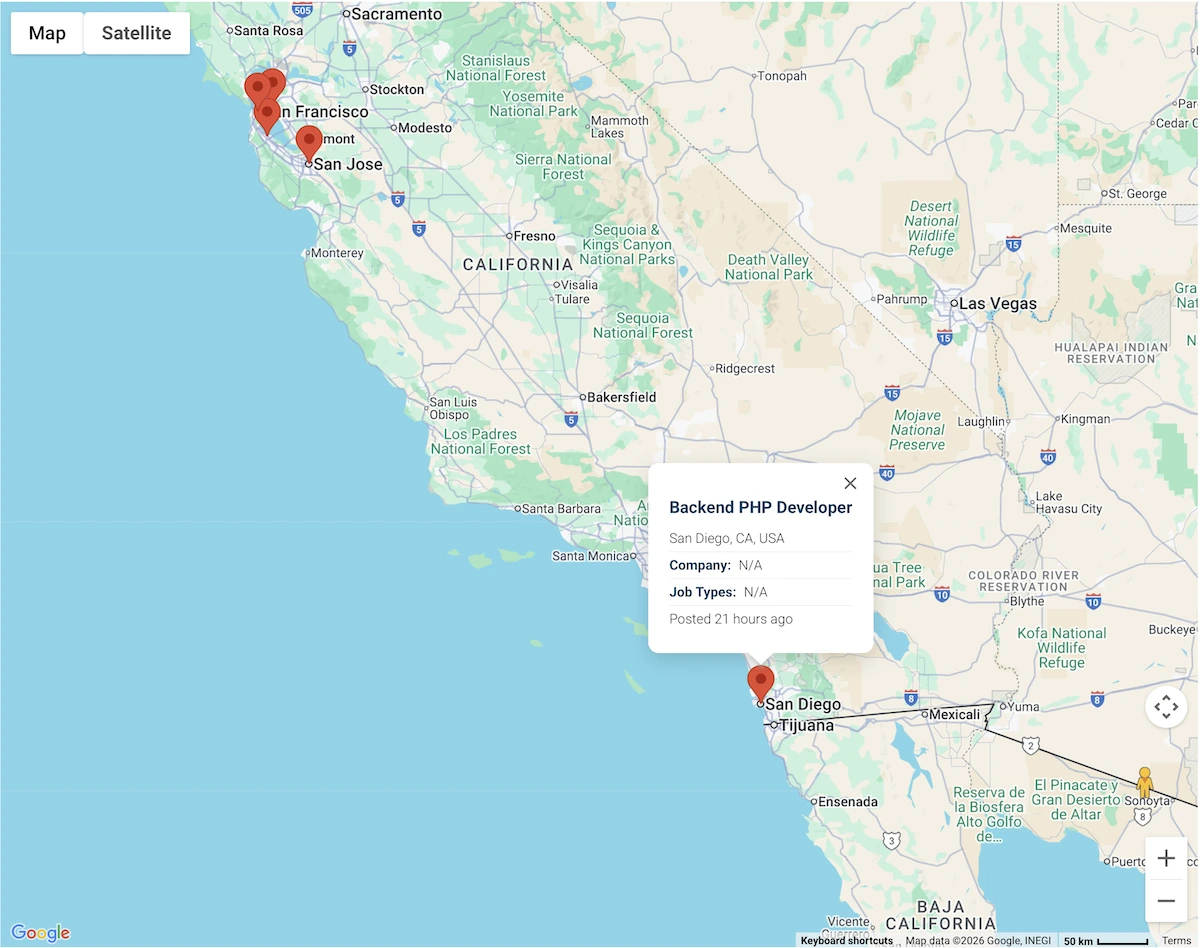
Available Shortcodes
Job Listings
[wpjmgeo_jobs_mashup_map]The jobs shortcode is included with the Starter and Pro packages.
Resumes
[wpjmgeo_resumes_mashup_map]The resumes shortcode is included with Pro and requires the separate WP Job Manager Resume Manager extension.
Shortcode Attributes
Add attributes inside the shortcode tag, separated by spaces. For example:
[wpjmgeo_jobs_mashup_map map_height="500px" max_locations="100" marker_clusterer="1"]Examples
Display the latest geocoded job listings:
[wpjmgeo_jobs_mashup_map]Display up to 100 job locations on a taller satellite map:
[wpjmgeo_jobs_mashup_map max_locations="100" map_height="500px" map_type="SATELLITE"]Display non-filled jobs indexed in Florida:
[wpjmgeo_jobs_mashup_map show_filled_jobs="0" search_state="FL"]Display resumes indexed in the United States without marker clustering:
[wpjmgeo_resumes_mashup_map search_country="US" marker_clusterer="0"]Use a custom job marker:
[wpjmgeo_jobs_mashup_map location_marker_url="https://example.com/images/job-marker.png"]Troubleshooting
- No markers appear: Confirm that published listings have indexed locations. Use Location Tools: Migration and Repair if locations are missing.
- The map does not load: Verify the Browser API key and its required services and restrictions in Generating Google Maps API Keys.
- A boundary filter returns no matches: Check the state and country values stored with the locations and use the same names or codes in the shortcode.
- Too many markers affect performance: Lower
max_locationsand keepmarker_clusterer="1".
The Mashup Map is a standalone listing map. To keep a map synchronized with the results returned by a WP Job Manager search form, use the geolocation-enabled [jobs] or [resumes] search workflow and the related results-map shortcode instead.
Review Search & Map Settings or review the geolocation shortcode attributes.